SDF Combine
Joins two distance fields with Union, Subtract, Intersect, XOR, Morph, and seam shapes, in hard, smooth, round, chamfer, stairs, or columns blends.
SDF Combine takes two fields, A and B, and outputs one. The boolean happens in the field itself, so the seam is exact and can be blended, stepped, or lit.

- Nine Mode operations, six Blend styles for the three booleans
- Edge Glow lights the seam, with an Edge Color texture input
- Found under SDF → Model in the operators panel; type
smooth unionorstairs subtractin theTabsearch to place one pre-set
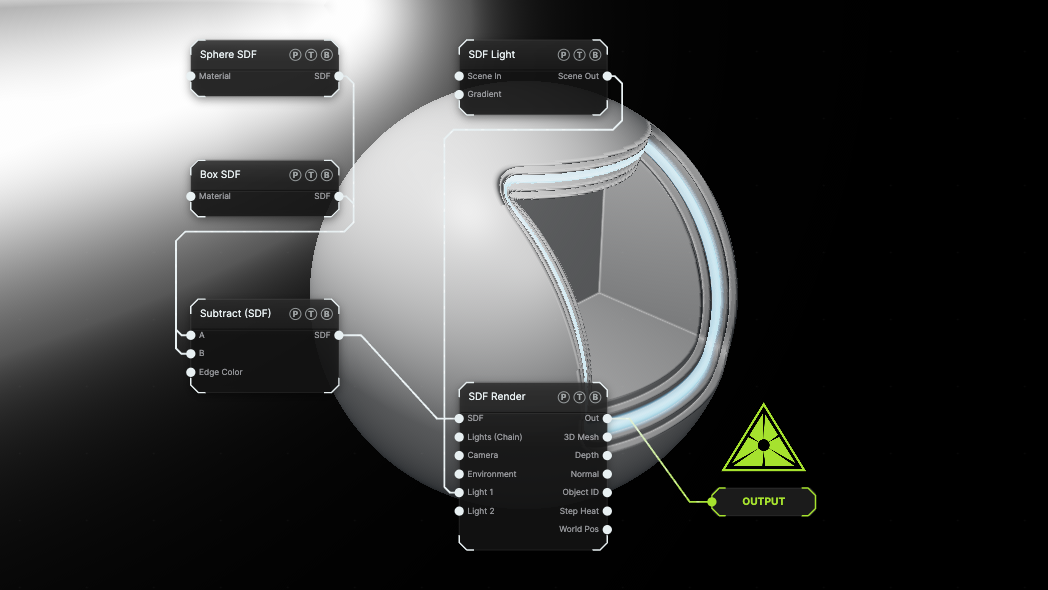
The image on the right is the example patch itself. Drag and drop it onto the app, or load it with File → Load, to open the full graph. A Box is subtracted from a Sphere with a Stairs blend and a glowing edge.
Inputs and outputs
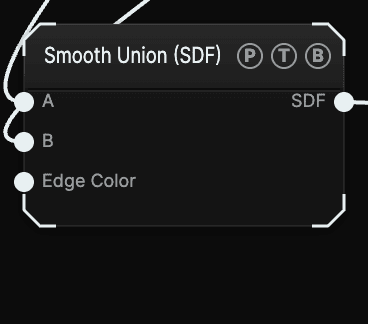
| Port | Type | Purpose |
|---|---|---|
| A | SDF | The first field. For Subtract, this is the shape that gets cut. |
| B | SDF | The second field. For Subtract, this is the cutter. |
| Edge Color | Texture | Optional. A gradient or image sampled across the glow band, from the seam centre to the band rim, tinted by Edge Color. Unwired, the glow is the flat colour. |
| SDF | SDF | The combined field. Chain it into another Combine to build up a model. |
Parameters
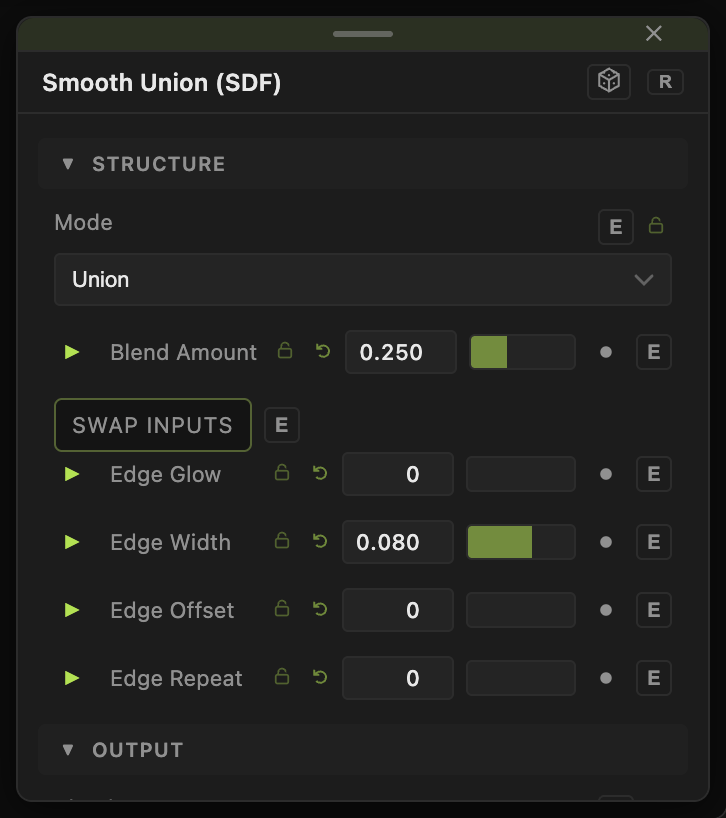
- Mode — default Union.
- Union, Subtract, Intersect — the booleans. These three use the Blend controls below.
- XOR — keeps what is in exactly one of the two shapes.
- Morph — interpolates between A and B. Morph (0–1, default 0.5) is the mix; animate it to melt one shape into the other.
- Pipe — a tube along the seam. Radius (default 0.12).
- Engrave — cuts B's outline into A's surface. Depth (default 0.08).
- Groove — a channel along the seam. Depth (default 0.1), Width (default 0.15).
- Tongue — a raised bead along the seam. Height (default 0.1), Width (default 0.15).
- Blend — how the booleans meet. Default Smooth. Hard is a plain min/max; Smooth and Round soften the seam; Chamfer cuts a flat bevel; Stairs and Columns shape the seam into repeated steps or ridges.
- Blend Amount (0.005–2, default 0.25) — the size of the blend zone.
- Steps (1–16, default 4) — step count for Stairs and Columns.
- Step Offset (−4 to 4, default 0) — slides the step pattern along the seam in whole steps, so a ramp from 0 to 1 loops without a jump.
- Swap Inputs (default off) — reverses A and B before combining. Use it on Subtract to cut A out of B instead.
- Edge Glow (0–8, default 0) — emissive highlight at the seam. 0 is off.
- Edge Color (default
#66ccff), Edge Width (0.005–0.5, default 0.08). - Edge Offset (0–10, default 0) — moves the glow band away from the exact seam.
- Edge Repeat (0–24, default 0) — repeats the band as a family of contours. With Repeat above 0, animating Edge Offset scrolls the bands without end.
Every float has a per-parameter animation bar. See Parameters and Controls.
Examples
Bolt head — Cylinder into A, Hex Prism into B, Mode Intersect, Blend Chamfer.
Melting — two different primitives, Mode Morph, animate Morph with a slow LFO.
Scanning seam — any union with Edge Glow 2, Edge Repeat 6, and Edge Offset animated from 0 to 1.
Troubleshooting
The blend controls are missing — they only show for Union, Subtract, and Intersect. The other modes carry their own size controls.
Edge Glow does nothing — it applies only to the three boolean modes, and it needs the two shapes to touch. Raise Edge Width if the band is too thin to see.