Worms
Animated glowing worm trails driven by chain physics, with mouse-following heads and interactive click effects.
The Worms node draws a swarm of glowing, segmented worms that swim around the frame under chain physics. Their heads can follow the mouse, and clicking the viewport triggers reactions — bursts, shockwaves, vortices, and more.
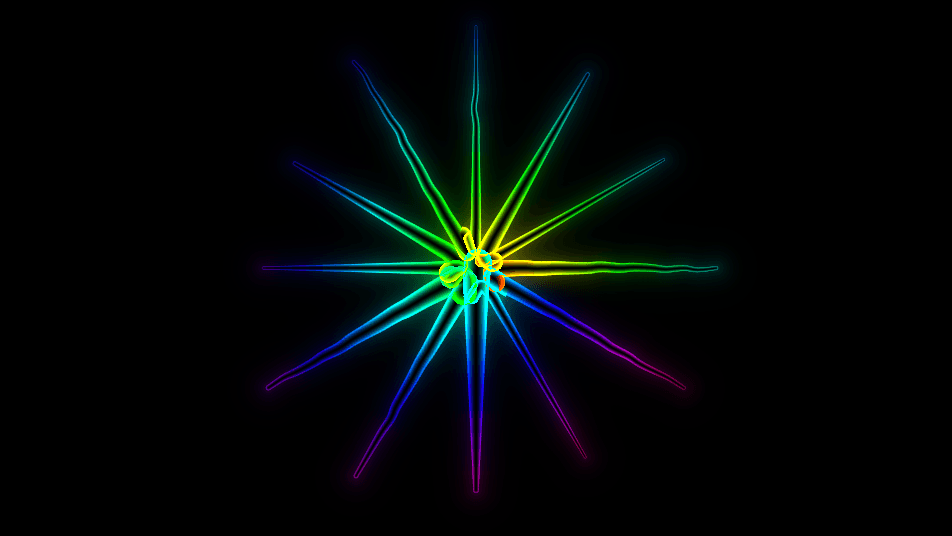
- One texture output; two optional texture inputs (domain warp and composite)
- Physics, geometry, motion, shading, and color controls
- Mouse-following heads and clickable Click Effect reactions
- Found in the node graph under Generators as Worms
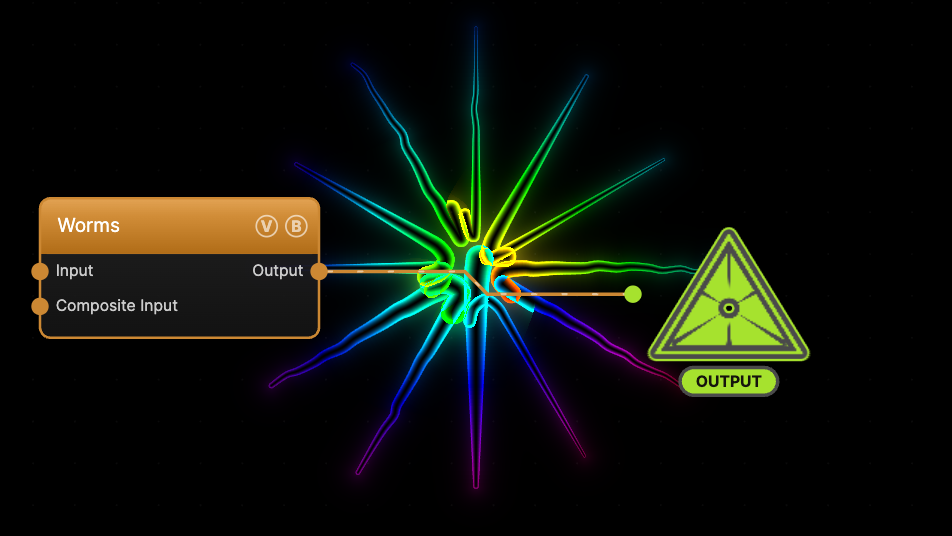
The image on the right is the example patch itself — drag and drop it onto the app (or load it with File → Load) to open the full graph.
Inputs and outputs
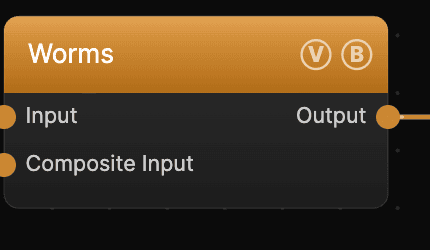
| Port | Type | Purpose |
|---|---|---|
| Displace | Texture | Domain warp: the red and green channels push the sample coordinates by Displace Amount |
| Composite Input | Texture | Composited over the output using Blend Mode and Opacity |
| Output | Texture | The glowing worms on black |
Parameters
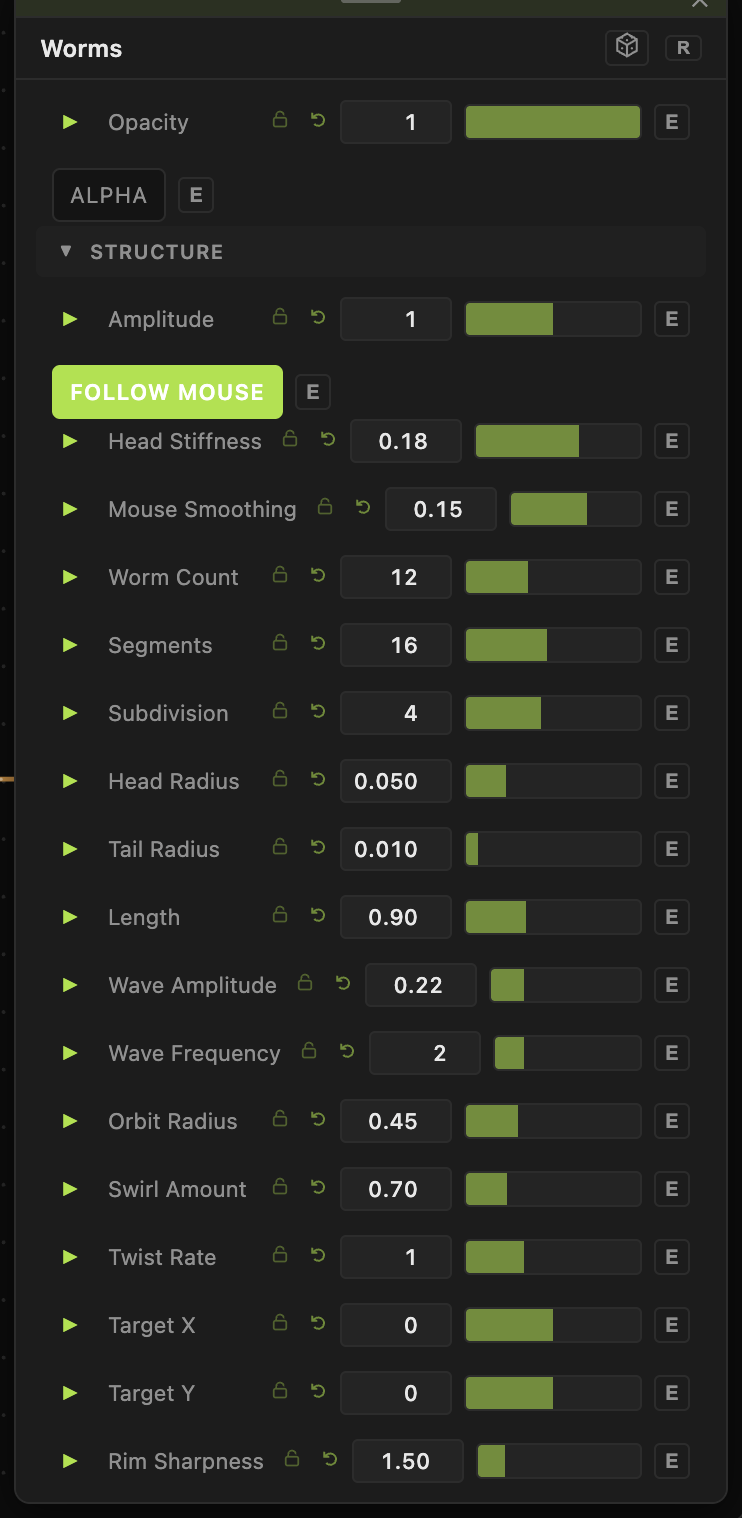
Opacity, Blend Mode — the standard operator header; see Perlin Noise.
Motion
- Speed (0–5, default 1) — overall animation rate.
- Follow Mouse (default on), Head Stiffness, Mouse Smoothing — how the heads chase the pointer.
- Orbit Radius / Orbit Speed, Wave Amplitude / Wave Frequency, Swirl Amount, Twist Rate, Chaos — the autonomous swimming motion when not chasing the mouse.
Geometry
- Worm Count (1–32, default 12), Segments, Subdivision — how many worms and how smooth each body is.
- Head Radius / Tail Radius / Length — the body profile.
Shading & color
- Rim Sharpness / Rim Intensity, Inner Glow / Outer Glow / Glow Falloff — the glow shading.
- Hue Offset / Hue Spread / Hue Cycle Speed, Saturation, Tail Fade — the rainbow coloring.
Interaction
- Click Effect — the reaction fired when you click the viewport (see the section below). Click Strength (0.1–3, default 1) scales how forceful it is.
Every slider has a per-parameter animation bar, so any of these can be animated, audio-driven, or MIDI-mapped — see Parameters and Controls.
Click effects
Worms is interactive. With a Worms node in the output chain, click (or click-drag) directly on the viewport to fire the selected Click Effect at the cursor. Set the effect in the parameters panel and scale it with Click Strength.
- Burst — explode the worms outward from the click.
- Shockwave — send an expanding ring that pushes worms as it passes.
- Vortex — swirl the worms around the click point.
- Repel / Attract — push worms away from, or pull their heads toward, the click.
- Pulse — a rainbow ring at the click (visual only, no physics push).
- Freeze — briefly pause the physics.
- Sparks — a bright flash with radiating beams.
- Whirlpool — suck worms inward and spiral them.
- Scatter — kick every worm with a random impulse.
Troubleshooting
Worms don't move — Speed is 0, or global animation is paused in the transport bar.
Worms clump at the cursor — that is Follow Mouse; turn it off for free swimming, or lower Head Stiffness.
Clicking does nothing — set a Click Effect other than None, and click directly on the viewport where the worms render.