Vector Motion Blur
Per-pixel blur along the motion estimated between frames, with a shutter angle, a spread control, and velocity and confidence outputs.
The Vector Motion Blur node measures how the input moved since the last frame and smears each pixel along that motion. Unlike the post effect Motion Blur, it needs no angle: the direction comes from the picture.
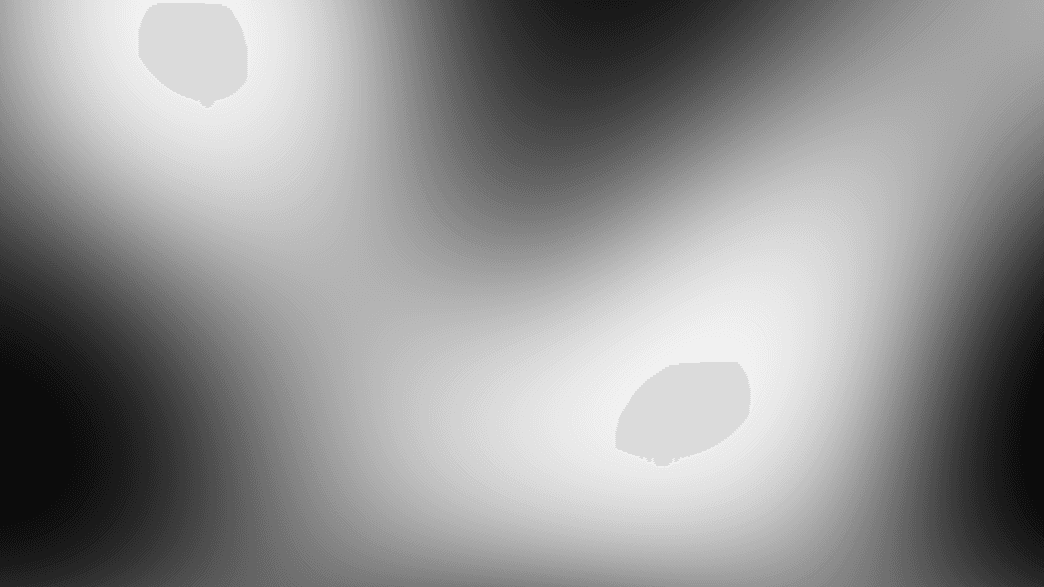
- Blur length follows a Shutter Angle, so the look holds when the frame rate changes
- Extra Velocity and Confidence outputs expose the motion field for other nodes
- Found in the node graph under Texture; search for
optical floworsmear
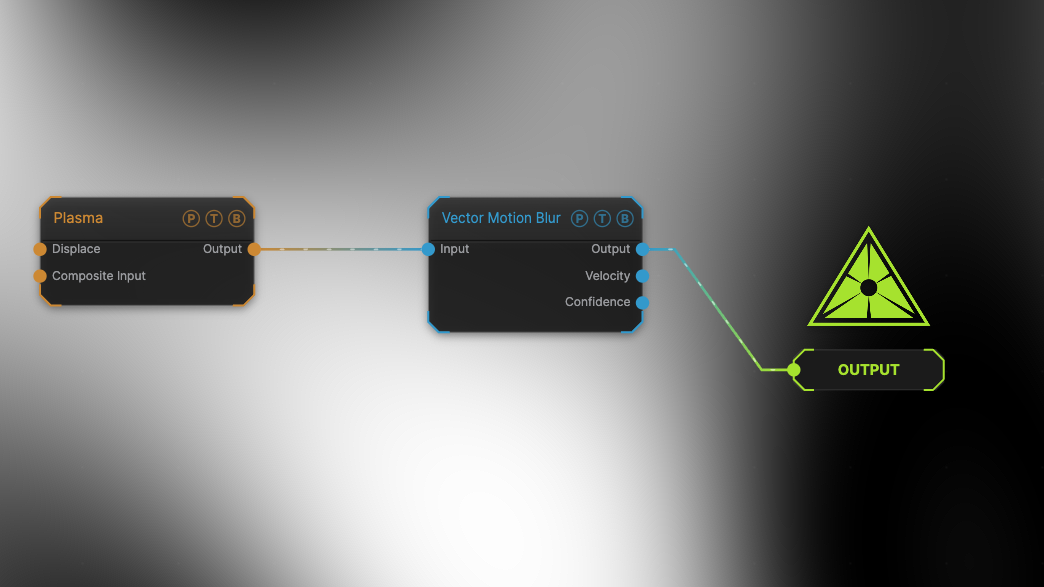
The image on the right is the example patch itself. Drag and drop it onto the app, or load it with File → Load, to open the full graph. A fast Plasma is blurred at the default 180° shutter.
Inputs and outputs
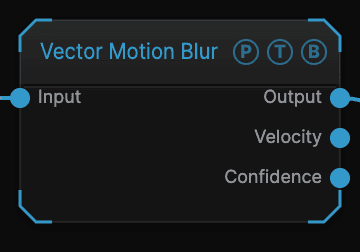
| Port | Type | Purpose |
|---|---|---|
| Input | Texture | The moving picture. |
| Output | Texture | The blurred frame. |
| Velocity | Texture | The estimated motion per pixel, scaled by Velocity View Gain. Feed it to a Displace node or view it directly. |
| Confidence | Texture | How sure the estimate is per pixel. Flat areas and straight edges score low. |
Parameters
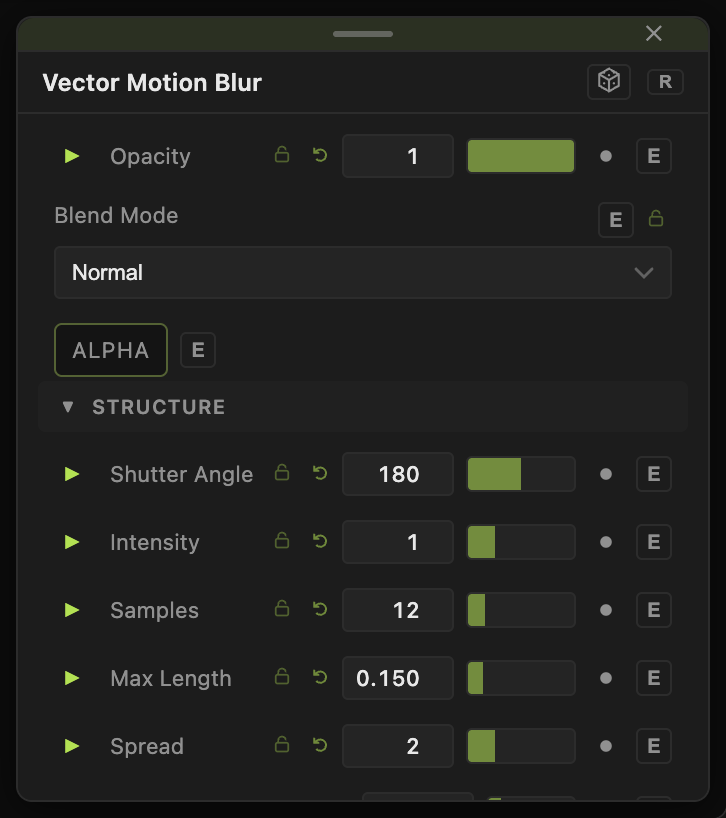
Opacity and Blend Mode are the standard header.
Look
- Shutter Angle (0–360, default 180) — blur length is velocity times shutter time, and shutter time is the angle over 360 divided by the frame rate. 180 is the film convention; 360 is an open shutter.
- Intensity (0–4, default 1) — a trim on top of the shutter length.
- Samples (2–64, default 12) — taps along the streak. Too few and a long streak shows as separate ghosts.
- Max Length (0.005–1, default 0.15) — the longest streak allowed, as a fraction of the frame. It stops one bad frame, such as a cut, from smearing the whole image.
Field
- Spread (0–8, default 2) — how far the motion field grows past a moving object's edge before the blur reads it. Without it the blur stops at the silhouette. This control decides whether the result reads as blur or as a smudge.
- Min Confidence (0–1, default 0.15) — pixels below this estimate are left untouched, which stops flat areas from shimmering.
- Flow Scale — 1/2, 1/4 (default), 1/8, or 1/16. Motion is estimated on a downsampled copy. Coarser is faster and catches larger motion per frame; finer catches small fast detail.
- Flow Smoothing (0–0.95, default 0.4) — blends the field with the previous frame's.
- Velocity View Gain (0.1–40, default 4) — brightness of the Velocity output only.
All floats carry a per-parameter animation bar. See Parameters and Controls.
Examples
Long exposure — Shutter Angle 360, Samples 32, Max Length 0.4 on a fast Curl Noise.
Flow-driven displacement — wire Velocity into a Displace node's map input with the same source as its image. The picture pushes itself along its own motion.
Troubleshooting
The blur stops at a hard edge — raise Spread.
Quiet areas flicker — raise Min Confidence, or raise Flow Smoothing.
Small fast objects are ignored — set Flow Scale finer.